
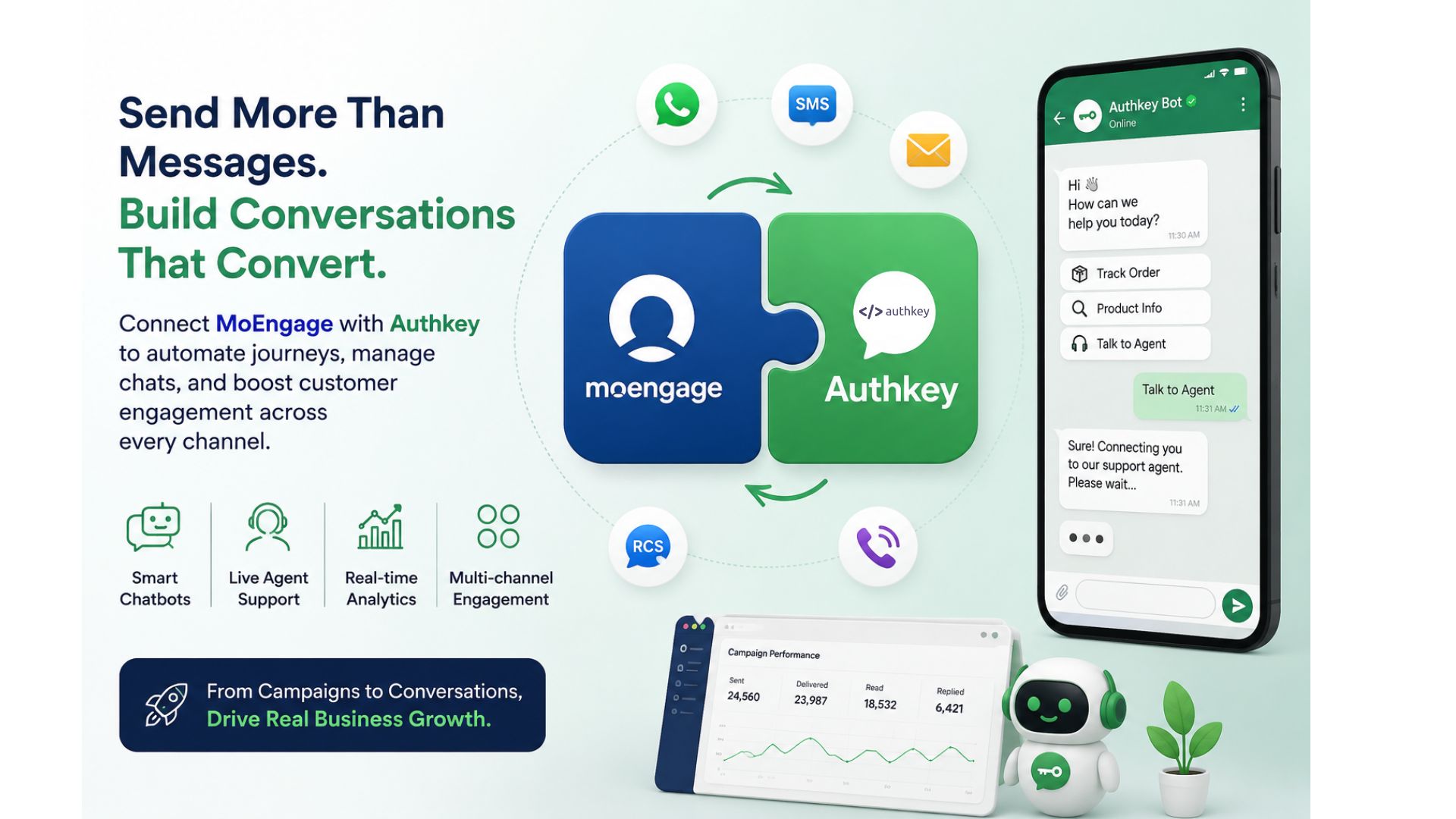
Customer engagement is no longer just about sending a WhatsApp message. Modern businesses need personalized conversations, automated journeys, real-time support, and detailed campaign analytics—all working together.
If you’re already using MoEngage for customer engagement, integrating it with Authkey gives you much more than just another WhatsApp provider. It transforms your campaigns into intelligent, two-way customer conversations that increase engagement and conversions.
In this guide, you’ll learn how to connect MoEngage with Authkey, send WhatsApp campaigns, manage conversations, and build powerful customer journeys.
Why connect moengage with authkey?
Authkey acts as your complete customer communication platform while MoEngage continues to manage customer segmentation and campaign automation.
Instead of simply delivering WhatsApp messages, Authkey enables you to:
- Send WhatsApp campaigns through the official WhatsApp Business API
- Design complete chatbot journeys for customer engagement
- Manage all customer conversations from a single Agent Panel
- Track message delivery and campaign performance
- Convert conversations into sales with live agents
- Connect multiple communication channels, including WhatsApp, SMS, RCS, Email, and Voice
- Improve customer response time with automation
The result? Better customer experiences, higher engagement, and increased conversions.
Before You Start
You’ll need:
- An active MoEngage account
- An Authkey account
- WhatsApp Business API configured on Authkey
- Required user permissions on both platforms
New to authkey? Start Here
If you’re already using MoEngage but haven’t created an Authkey account yet, follow these quick steps.
Step 1: Create Your authkey Account
- Sign up on Authkey and create your account.
Step 2: Configure Your Communication Channel
Complete the setup for:
- WhatsApp Business API
- SMS
- RCS
- Email (optional)
Once your channel is configured, you’re ready to connect with MoEngage.
Already Using Authkey?
Great! You can directly proceed with the integration steps below.
Step 1: Open MoEngage WhatsApp Settings
- Log in to your MoEngage dashboard.
- Navigate to:
- Settings → Channels → WhatsApp
Step 2: Select Authkey Connector
From the WhatsApp page, click: “+ Add Connector”
- Choose Authkey from the connector dropdown.
- You’ll now see the connector configuration form.
Fill in the details below.
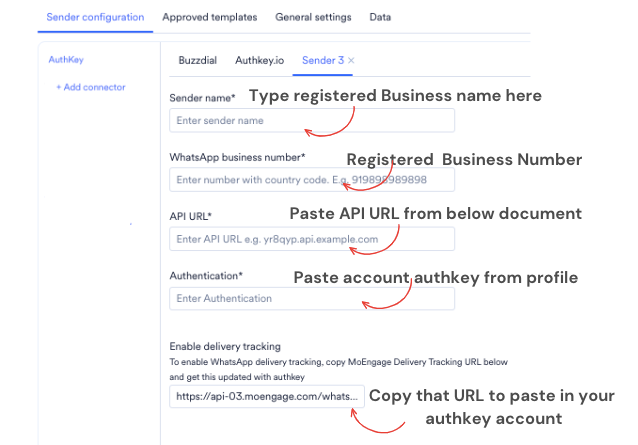
API URL
Paste the following URL:
Authentication
Choose:
- Bearer Authentication
- Enter your Authkey Account Token.
- Bearer <Your Authkey Account Token>
Delivery Tracking URL
MoEngage will generate a Delivery Tracking URL.
Copy this URL.
You’ll need it in the next step.
Step 3: Configure Delivery Tracking in Authkey
Open your Authkey Dashboard.
From the left menu, navigate to the Configure Webhook section.
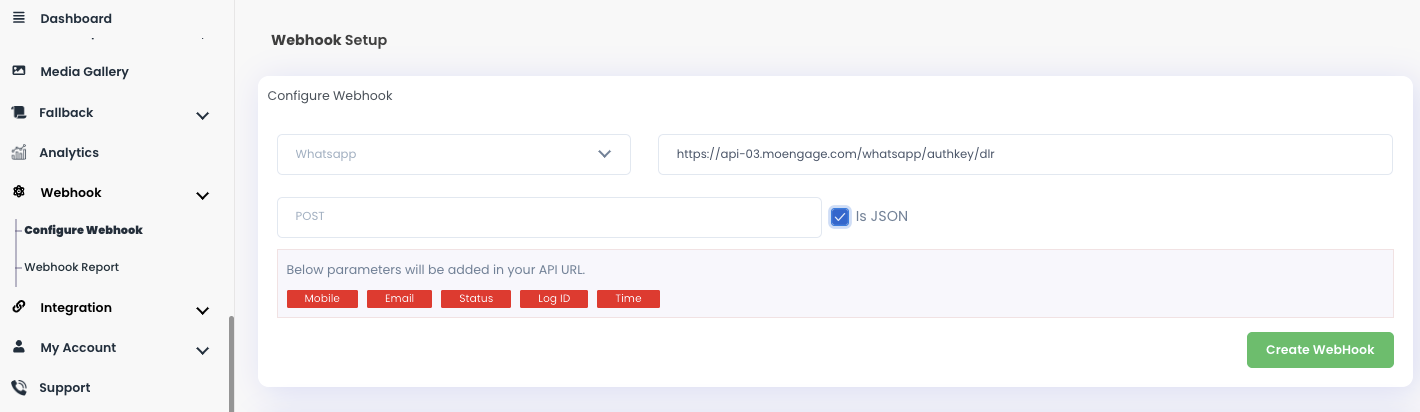
Paste the Delivery Tracking URL you copied from MoEngage.
Save the configuration.
This enables Authkey to send delivery reports, read receipts, and message status updates back to MoEngage, allowing accurate campaign analytics.
Step 4: Configure WhatsApp Templates
Return to your MoEngage dashboard.
While creating a WhatsApp campaign, you’ll have two options:
- Fetch templates from Authkey
- Create template mapping manually
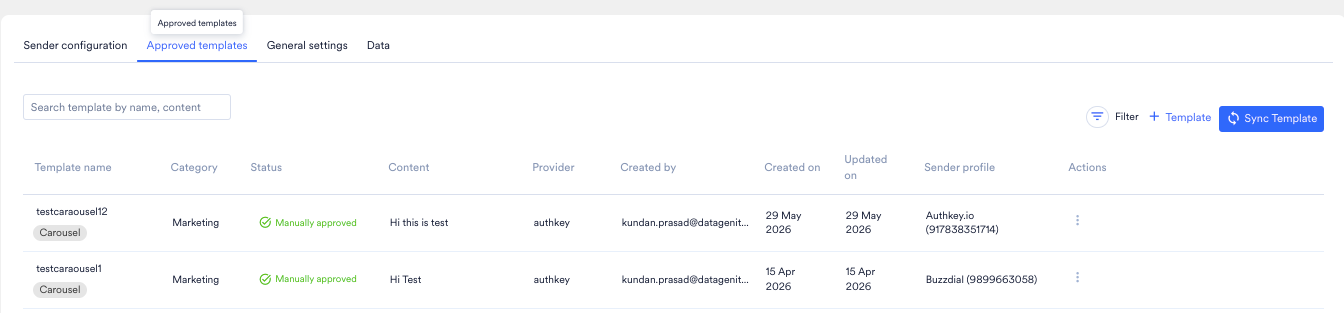
Important: Every WhatsApp template must first be approved and created inside the Authkey panel because your Meta WhatsApp Business Account is connected with Authkey. All WhatsApp messages are sent through your Authkey account.
Once the templates are available, simply select the one you want to use.
Step 5: Launch Your Campaign
Navigate to:
Campaigns → Create WhatsApp Campaign
Now:
- Select your audience
- Choose the sender
- Select the approved template
- Review the campaign
- Launch it
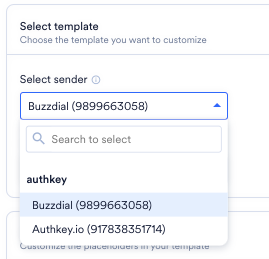
Your WhatsApp messages will now be delivered through Authkey while MoEngage continues to manage customer journeys and segmentation.
Take Customer Engagement Beyond Messaging
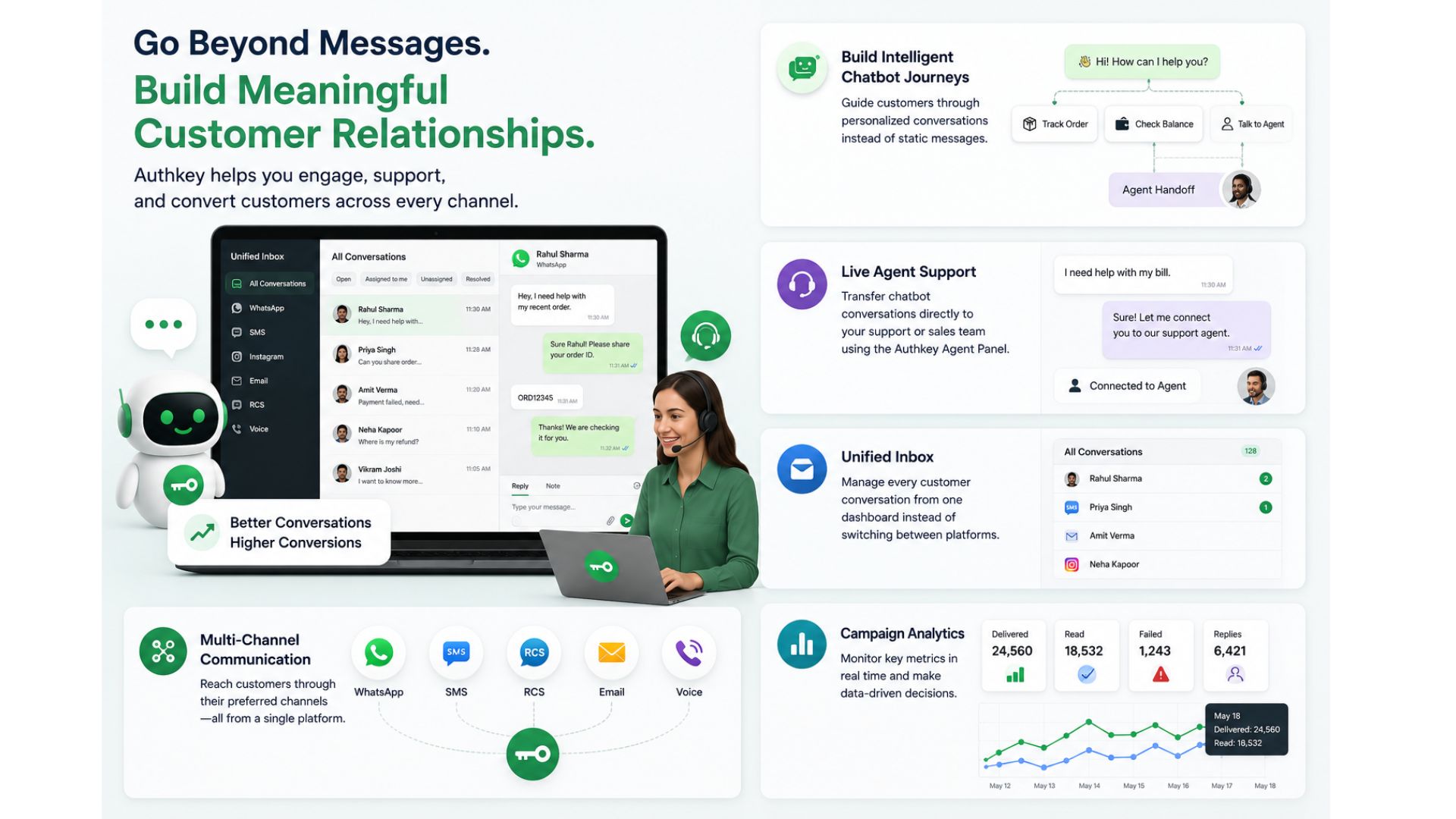
Connecting MoEngage with Authkey unlocks capabilities that go far beyond campaign delivery.
With Authkey, you can:
Build Intelligent Chatbot Journeys
Guide customers through personalized conversations instead of static messages.
Live Agent Support
Transfer chatbot conversations directly to your support or sales team using the Authkey Agent Panel.
Unified Inbox
Manage every customer conversation from one dashboard instead of switching between platforms.
Multi-Channel Communication
Reach customers through:
- SMS
- RCS
- Voice
—all from a single platform.
Campaign Analytics
Monitor:
- Delivery reports
- Read receipts
- Failed messages
- User engagement
- Agent performance
in real time.
Benefits of Integrating MoEngage with Authkey
| Feature | Benefit |
| Official WhatsApp API | Reliable message delivery |
| Chatbot Builder | Automate customer conversations |
| Agent Panel | Convert conversations into sales |
| Delivery Tracking | Real-time campaign insights |
| Multi-channel Platform | Manage all communication from one place |
| Template Management | Centralized Meta-approved templates |
| Customer Journey Automation | Personalized engagement at scale |
| Unified Inbox | Better customer support experience |
MoEngage vs Authkey
Many businesses compare MoEngage and Authkey, but the reality is they solve different problems—and together they create a powerful customer engagement stack.
| Feature | MoEngage | Authkey |
| Customer Segmentation | ✅ | Limited |
| Journey Builder | ✅ | ✅ (via chatbot & automation) |
| WhatsApp Chatbot Builder | Basic | ✅ Advanced No-Code Builder |
| Live Agent Panel | ❌ | ✅ |
| Shared Team Inbox | ❌ | ✅ |
| WhatsApp Template Management | Partial | ✅ Complete |
| Conversation Management | ❌ | ✅ |
When should you use both?
Use MoEngage for:
- Customer segmentation
- Journey orchestration
- Audience targeting
- Marketing automation
Use Authkey for:
- Official WhatsApp Business API
- Chatbot automation
- Live chat support
- Agent panel
- Multi-channel messaging
- Template management
- Delivery reporting
- Customer conversations
Together, they create a complete customer engagement ecosystem—from identifying the right audience in MoEngage to delivering personalized conversations and managing customer interactions through Authkey.